
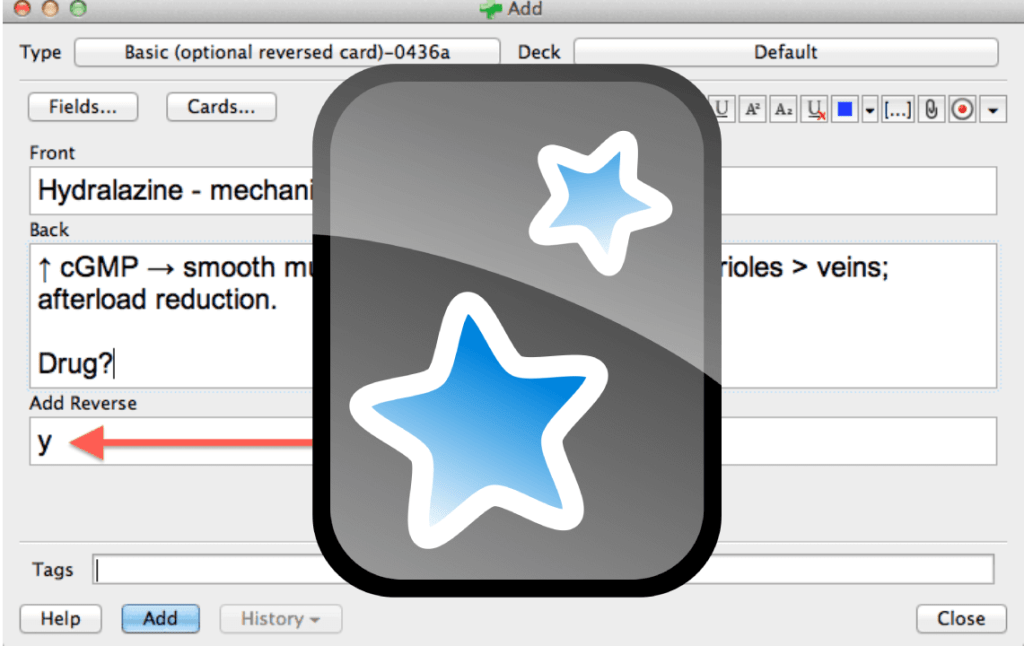
For advanced users looking to fine-tune their Anki experience, optimizing the settings can significantly enhance the efficiency and effectiveness of your study sessions. Here’s a comprehensive guide to some of the best advanced settings for Anki.
Step 1: Fine-Tuning Deck Options
- Deck-Specific Options:
- Click on the gear icon next to your deck name and select “Options”.
- Create multiple option groups tailored for different types of material (e.g., languages, medical studies, general knowledge).
- New Cards:
- Steps (in minutes): Adjust the learning steps to optimize retention. For example, you might use “1 10 30 1440” for intensive review or “1 15 1440” for lighter review.
- Graduating Interval: Increase to 3 days for a more aggressive retention schedule.
- Easy Interval: Set to 7 days or more to quickly move easy cards forward.
- Reviews:
- Maximum Interval: Increase to 365 days if you’re confident in your long-term retention.
- Interval Modifier: Adjust to 80-120% to fine-tune how review intervals change based on your performance.
- Hard Interval: Set to 1.2 to 1.5 to control the interval reduction for hard cards.
- Lapses:
- Steps (in minutes): Customize lapse steps based on your retention rate. A common setup is “10 1440 4320” (10 minutes, 1 day, 3 days).
- New Interval: Set to 0.7 to reduce the interval to 70% of its previous value after a lapse.
- Minimum Interval: Keep at 1 day to ensure immediate review.
- Advanced Settings:
- Leech Action: Set to “Tag Only” to manually review problematic cards without automatically suspending them.
- Leech Threshold: Adjust to 4-8 lapses before a card is tagged as a leech, depending on difficulty.
Step 2: Customizing Card Templates and Styling
- Custom Card Templates:
- Access the card editor and click on “Cards” to modify the HTML and CSS.
- Create different templates for different types of information (e.g., cloze deletions, image occlusion, basic Q&A).
- Advanced CSS Styling:
- Enhance readability and engagement by customizing the look and feel of your cards.
- Use CSS to control font sizes, colors, spacing, and layout. For example:
.card { font-family: Arial, sans-serif; font-size: 20px; line-height: 1.5; color: #333; } .front { background-color: #f9f9f9; } .back { background-color: #e9ecef; }
Step 3: Utilizing Add-Ons for Enhanced Functionality
- Essential Add-Ons:
- AnkiConnect: Allows integration with other applications and scripts.
- Review Heatmap: Visualizes your review activity over time.
- Image Occlusion Enhanced: Perfect for creating cards with parts of an image hidden for recall.
- Advanced Browser: Adds advanced search and filtering options to the card browser.
- Enhance Main Window: Customizes the main window layout for better navigation.
- Specialized Add-Ons:
- Migaku Tools: For language learners, this suite offers features like word parsing, dictionary integration, and pitch accent coloring.
- Speed Focus Mode: Helps you maintain a rapid review pace with automatic advancement.
Step 4: Customizing Study Settings
- Filtered Decks:
- Create filtered decks to focus on specific subsets of cards. Use search queries to include cards based on tags, deck names, or review status.
- Example: Create a filtered deck for “due cards tagged with ‘difficult’” using the search query
tag:difficult is:due.
- Custom Study Sessions:
- Use the “Custom Study” feature to temporarily increase the number of new cards or reviews.
- Choose options like “Review forgotten cards” or “Increase today’s new card limit” for targeted sessions.
Step 5: Monitoring and Analyzing Performance
- Advanced Statistics:
- Use the built-in statistics to analyze performance trends, review intervals, and card ease.
- Install add-ons like “True Retention” to get more detailed insights into your learning efficiency.
- Adjusting Based on Data:
- Regularly review your performance data to identify areas for improvement.
- Adjust settings such as new card limits, learning steps, and review intervals based on your retention rates and study habits.
Enhancing Anki with Dekki
At Dekki, we provide additional tools to improve and streamline your Anki experience:
- AI-Powered Content Creation: Generate and refine flashcards directly within Dekki using AI.
- Collaborative Learning: Share your decks with peers and collaborate on improving them.
- Optimized Review Settings: Dekki’s spaced repetition settings are optimized based on your current study goals to minimize complexity and maximize retention.
- Advanced Analytics: Gain deeper insights into your learning progress with detailed analytics tools.
By optimizing Anki with these advanced settings and integrating Dekki into your study routine, you can take your learning efficiency to the next level. Whether you’re tackling complex subjects or refining your language skills, these tools will help you achieve your educational goals more effectively. Happy studying!
 Dekki Blog
Leave a comment